Dashboard
The Tickets web dashboard is your central hub for managing your Discord ticket system. From here you can configure settings, create ticket panels, manage staff teams, view transcripts, and more.
Logging In
Visit dashboard.tickets.bot and click Log in with Discord. You will be redirected to Discord's authorisation page. Click Authorise to grant the dashboard access to your Discord account, then you will be returned to the dashboard.
Servers Page
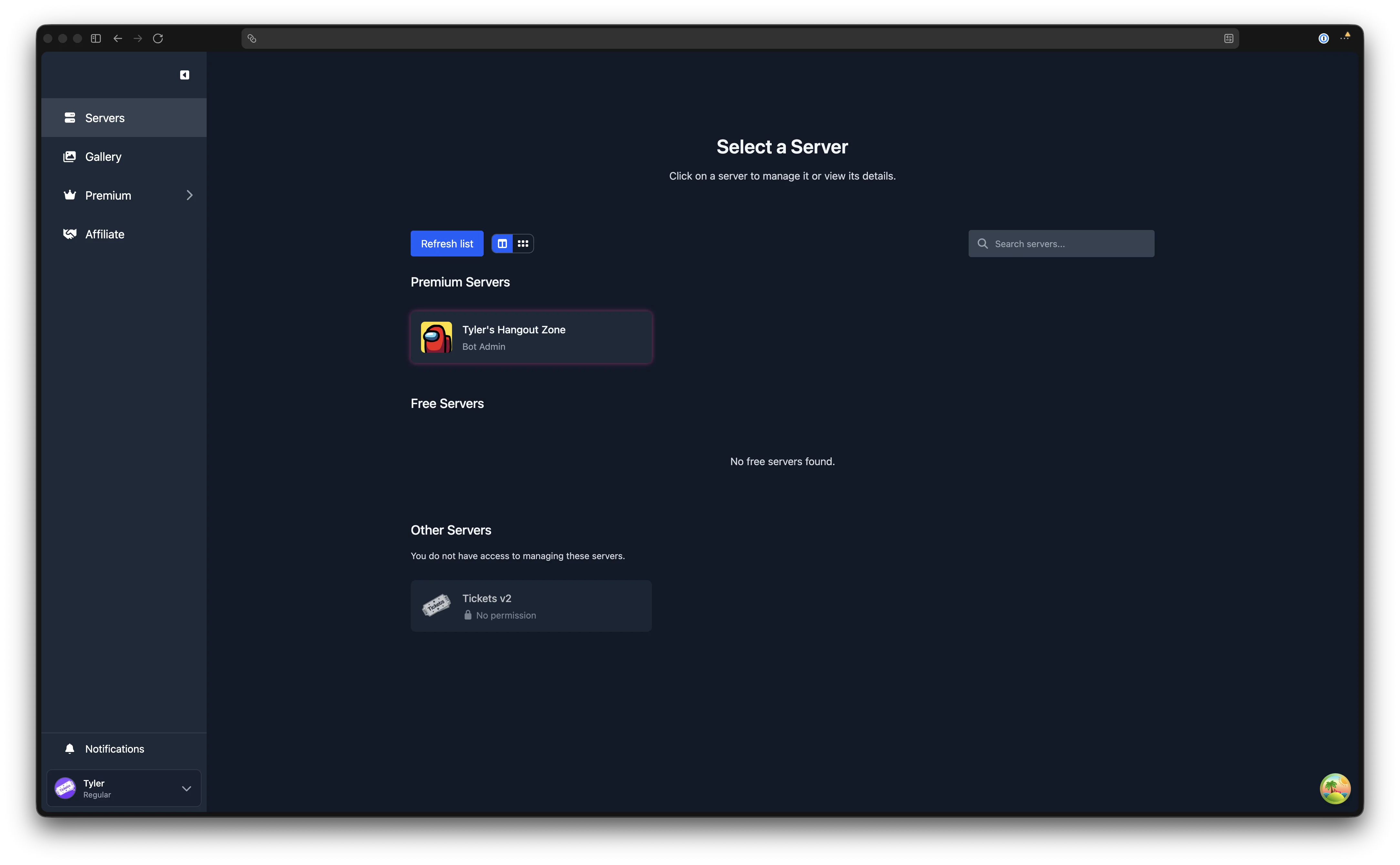
After logging in you land on the Servers page. This page lists every Discord server you are a member of, separated into three groups:
- Premium Servers - servers with an active premium subscription
- Free Servers - servers where you have admin or support access but no premium subscription
- Other Servers - servers you belong to but have no management access to
You can switch between Card view and Icon view using the toggle buttons at the top. A search bar lets you filter servers by name or ID, and the Refresh list button reloads your server list from Discord.
Click on a server to open its management dashboard.
Sidebar Navigation
Once you select a server, the sidebar shows the server's name and icon at the top, followed by navigation links organised into groups.
Navigation Groups
The sidebar is divided into the following sections:
| Group | Pages | Description |
|---|---|---|
| (Top-level) | Overview | Server dashboard with ticket statistics |
| Tickets | Tickets, Transcripts, Analytics | View open tickets, closed ticket transcripts, and performance analytics |
| Setup | Settings, Panels, Forms, Integrations | Configure server settings, ticket panels, forms, and third-party integrations |
| Content | Knowledge Base, Tags | Manage knowledge base articles and quick-reply tags |
| Moderation | Staff Teams, Blacklist, Audit Log | Manage support teams, blocked users, and review a log of dashboard changes |
Permission Levels
Not all sidebar items are visible to every user. Visibility depends on your permission level for that server:
| Level | Label | What You See |
|---|---|---|
| 2 | Bot Admin | All sidebar items |
| 1 | Support Rep | Overview, Tickets, Transcripts, Analytics, and Blacklist |
Bot Admins are users added via the /addadmin command or the server owner. Support Reps are members of a staff team or users with the support role. If you cannot see a page you expect to have access to, check with your server administrator.
Sidebar Footer
Below the navigation links, the sidebar footer contains:
- Notifications - a bell icon that links to the Notifications page. When you have unread notifications, a blue dot and count badge appear on the bell.
- Account menu - your Discord avatar and username. Click it to expand a menu with Settings (opens User Settings) and Log out.
The sidebar can be collapsed to icon-only mode by clicking the collapse button at the top. On mobile, it opens as a slide-out drawer via the hamburger menu.
Command Palette
Press Ctrl+K (or Cmd+K on macOS) to open the command palette. This is a quick-navigation overlay that lets you search for and jump to any page in the dashboard. Type a page name and press Enter to navigate.
When you are viewing a server, the command palette also shows Quick Actions for admin users:
- Create Panel - jump directly to the panel creation page
- Create Form - jump directly to the form creation page
- Create Team - jump to the staff teams page
Keyboard Shortcuts
Press ? on any page to open the keyboard shortcuts modal. The following shortcuts are available when viewing a server:
| Shortcut | Action |
|---|---|
| ? | Show keyboard shortcuts |
| Ctrl+K / Cmd+K | Open command palette |
| g then o | Go to Overview |
| g then t | Go to Tickets |
| g then a | Go to Analytics |
| g then r | Go to Transcripts |
| g then p | Go to Panels (admin only) |
| g then s | Go to Settings (admin only) |
Keyboard shortcuts are disabled when you are typing in a text input, text area, or select field.
Global Pages
Outside of server management, the sidebar shows links to global pages:
- Servers - return to the server list
- Gallery - browse community-submitted panel templates
- Premium - view pricing, manage your subscription, and configure your whitelabel bot
- Affiliate - apply for the affiliate programme and track referrals