
Template Gallery
The Template Gallery is a community-driven collection of pre-made templates. You can browse panels, tags, and forms shared by other server admins, import them into your own server, or publish your own designs for others to use.
Browsing the Gallery
To open the gallery, click Browse Gallery on the Panels page, or navigate to the gallery directly from the sidebar.
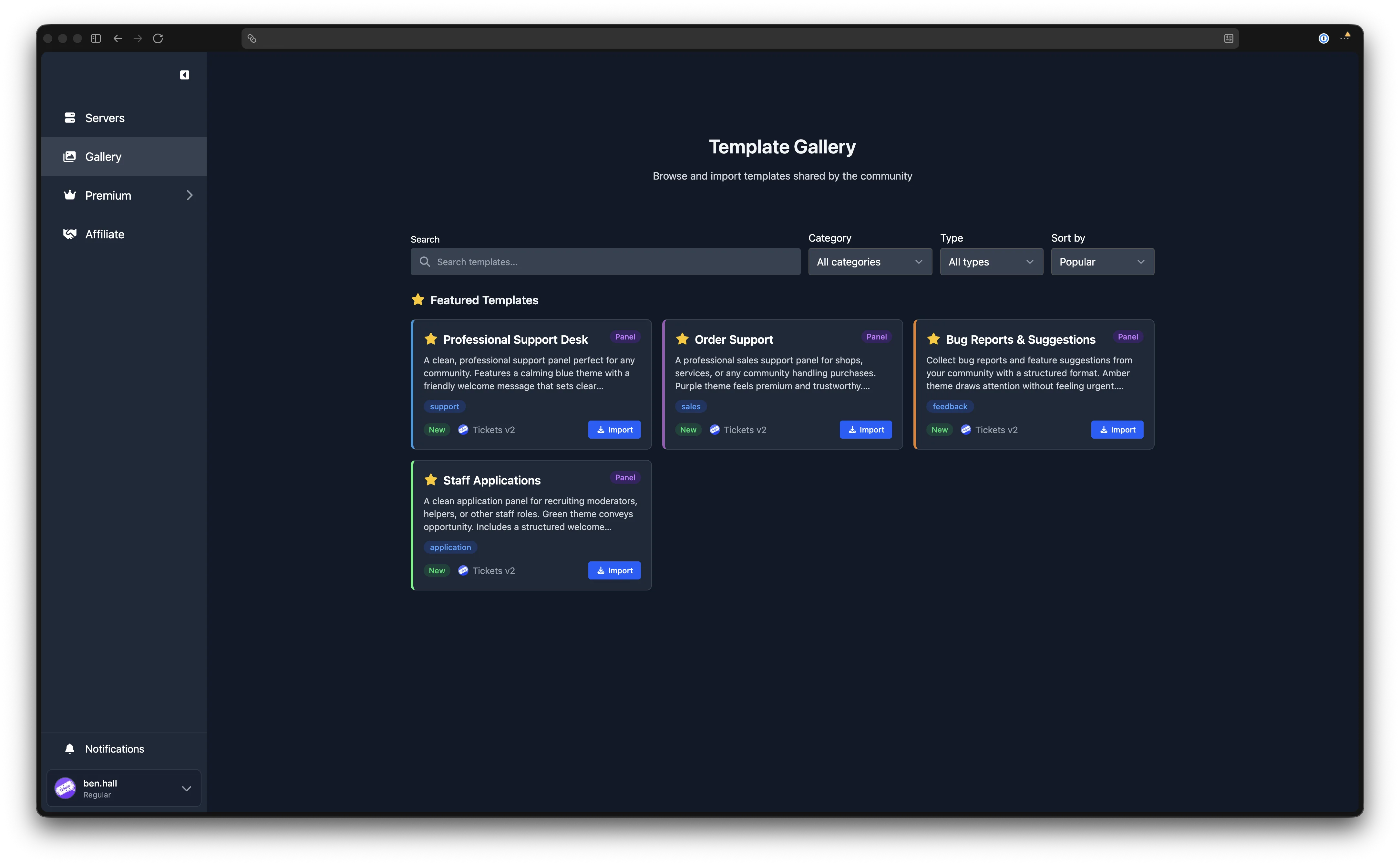
The gallery supports several ways to find templates:
- Search - type in the search bar to filter templates by name.
- Category - narrow results by category (e.g. Support, Moderation, Applications). Select "All categories" to clear the filter.
- Type - filter by template type: Panels, Tags, or Forms.
- Sort - order results by Popular (most imported) or Newest (most recently published).
- Clear - click the clear button to reset all filters at once.
Each gallery card shows the template's name, description, category, type, tags, and the number of times it has been imported.
Featured Templates
On the first page, when no filters are active, a Featured Templates section highlights curated templates at the top of the gallery.
Template Detail Page
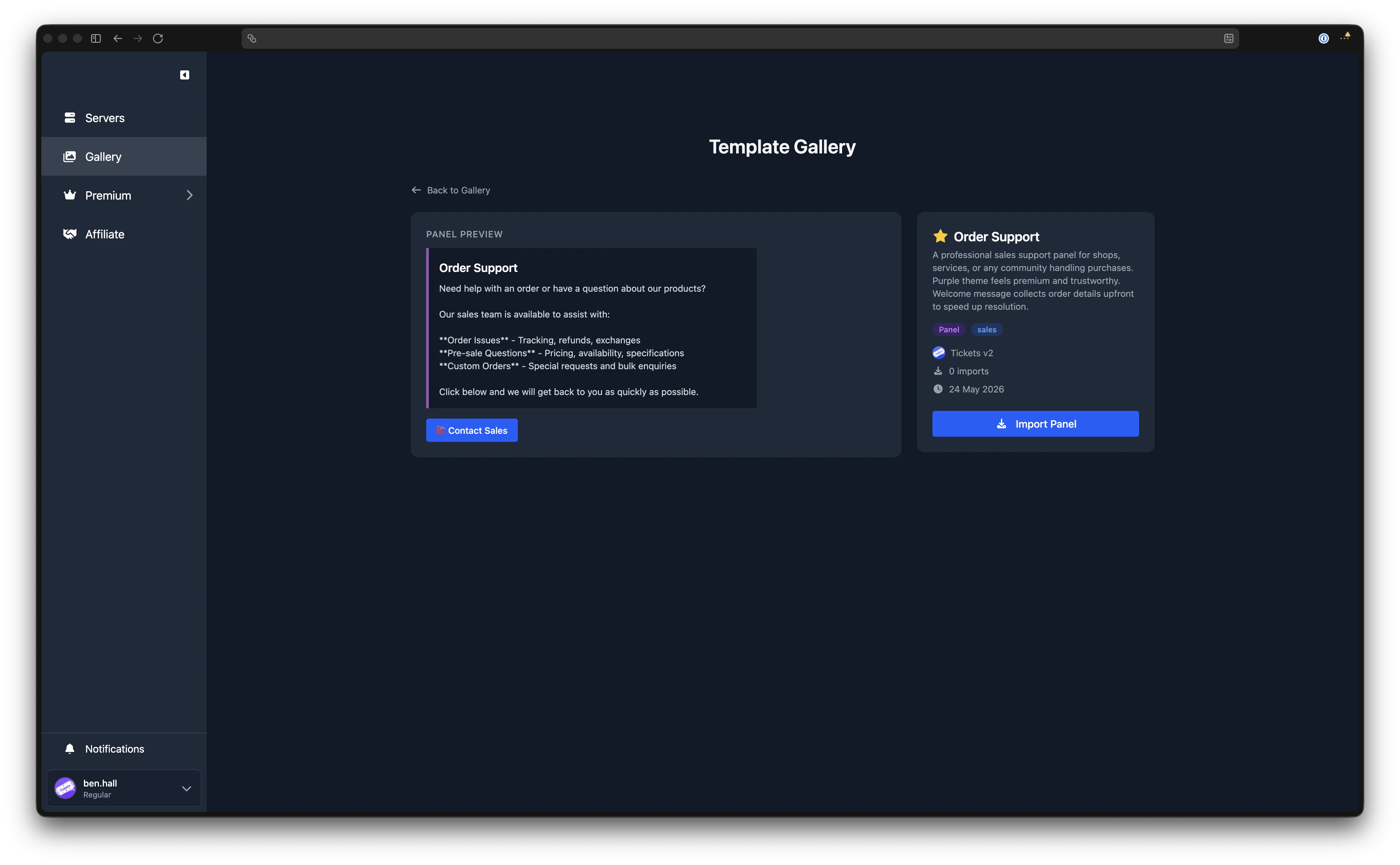
Click any gallery card to view the full detail page. This shows a larger preview of the template (panel embed, tag content, or form fields), the author's name, the date it was published, the import count, and the template's tags and category.
Importing a Template
To import a template into your server:
- Find a template you like and click Import Panel, Import Tag, or Import Form (the label matches the template type).
- Select the server you would like to import it into.
- For panels, you can optionally choose a channel for the panel and a category for new tickets.
- Click Import. The template is created in your server.
- For panels, you are redirected to the panel editor where you can customise server-specific settings such as support teams, forms, access control, and more.
Imports Are Fully Editable
Importing a template gives you a fully editable copy. You are free to change any settings after import.
Publishing a Template
To share one of your templates with the community:
- Head to the appropriate page on the dashboard:
- Panels: go to the Panels page, click the action menu on a panel, and select Publish to Gallery.
- Tags and Forms: publishing is available from their respective pages in the same way.
- Fill in the required details in the submission modal:
- Name - a clear, descriptive title for your template (up to 100 characters).
- Description - a short summary of what the template is designed for (up to 500 characters).
- Category - choose the most relevant category (see Categories below).
- Tags (optional) - add up to 3 tags to help others find your template.
- Click Submit for Review.
Submission Requirements
Please ensure your template has a descriptive title, meaningful content, and no server-specific references. Custom Discord emojis are not supported in gallery submissions; use standard Unicode emojis instead.
Submission Review
After you submit a template to the gallery, it enters a review queue. Submissions are typically reviewed within 48 hours.
You can check the status of your submissions on the Panels page in the Gallery Submissions section. Each submission shows one of three statuses:
| Status | Meaning |
|---|---|
| Pending | Awaiting review |
| Approved | Published and visible in the gallery |
| Rejected | Not accepted; a reason is provided so you can make changes and resubmit |
Managing Your Submissions
From the Gallery Submissions section on the Panels page, you can:
- Edit a submission to update its name, description, category, or tags. If the source template has changed, editing will also re-submit the latest version for review.
- Withdraw a pending submission to cancel it before it is reviewed.
- Unpublish an approved submission to remove it from the gallery. Servers that have already imported it keep their copy.
Categories
When publishing a template, choose from the following categories:
| Category | Description |
|---|---|
| Support | Customer support and help desks |
| Moderation | Ban appeals, reports, rule violations |
| Sales | Orders, purchases, commercial enquiries |
| Applications | Staff recruitment, team tryouts, sign-ups |
| Feedback | Suggestions, bug reports, feature requests |
| General | Other designs that do not fit the above |
| Other | Anything else |
What Gets Shared
When you publish a panel to the gallery, only the panel's visual design is shared. This includes:
- Panel title and content
- Embed colour
- Button style, text, and emoji
- Welcome message
- Image URLs
Server-specific settings are not shared. The following are left for importers to configure themselves:
- Panel channel and ticket category
- Support teams
- Forms
- Access control rules
- Mention on open settings
- Naming scheme
- Support hours
This means your server's private configuration stays private. Only the look and feel of the template is published.