Thread Mode
Thread mode is an alternative way to create tickets. Instead of opening a separate channel for each ticket, the bot creates a private thread under the panel channel. This changes several aspects of how tickets work, so read the comparison below to decide which mode suits your server.
Enabling Thread Mode
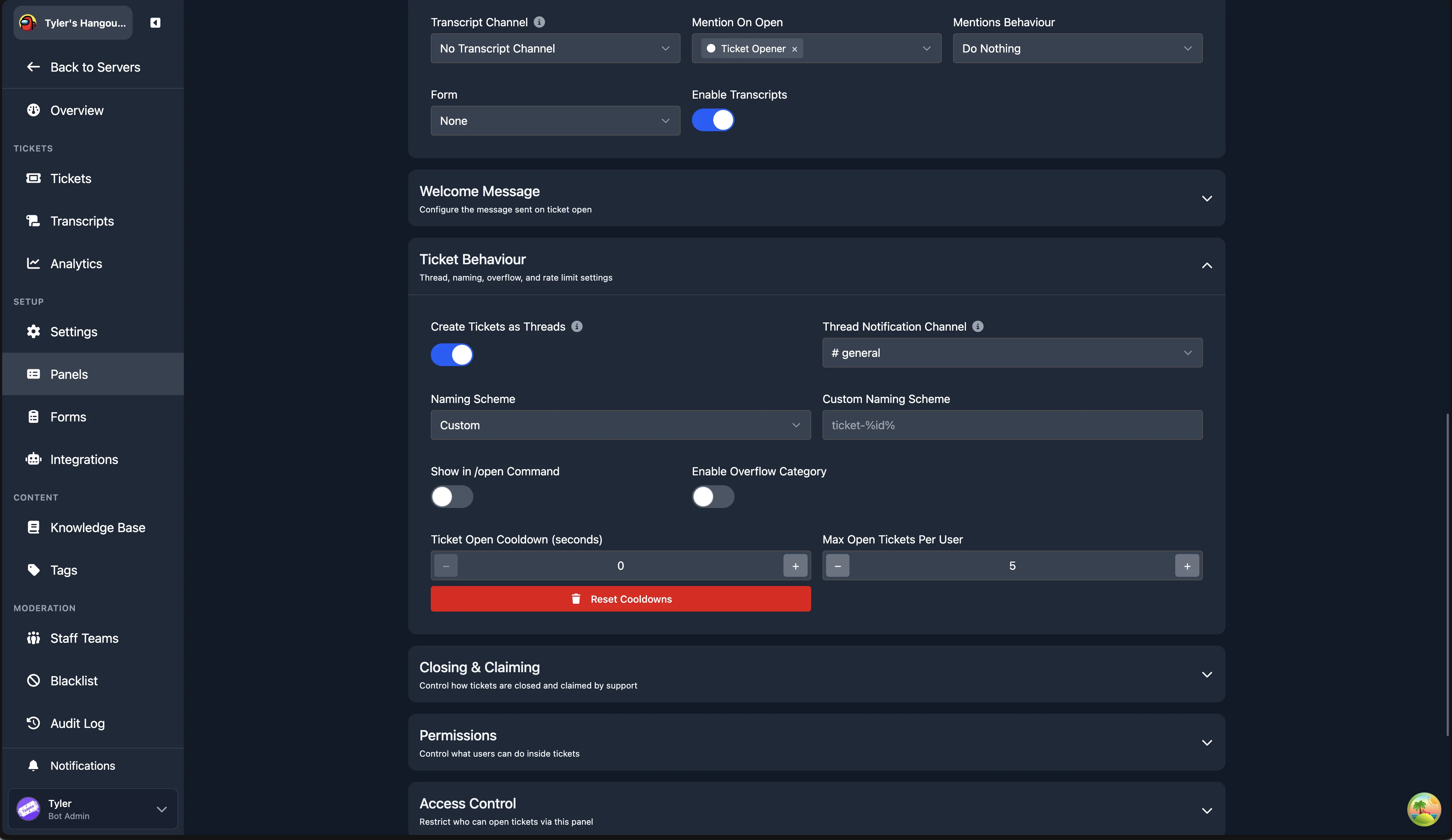
Thread mode is enabled per panel. Open any panel from the Panels page, expand the Ticket Behaviour section, and enable the Create Tickets as Threads toggle.
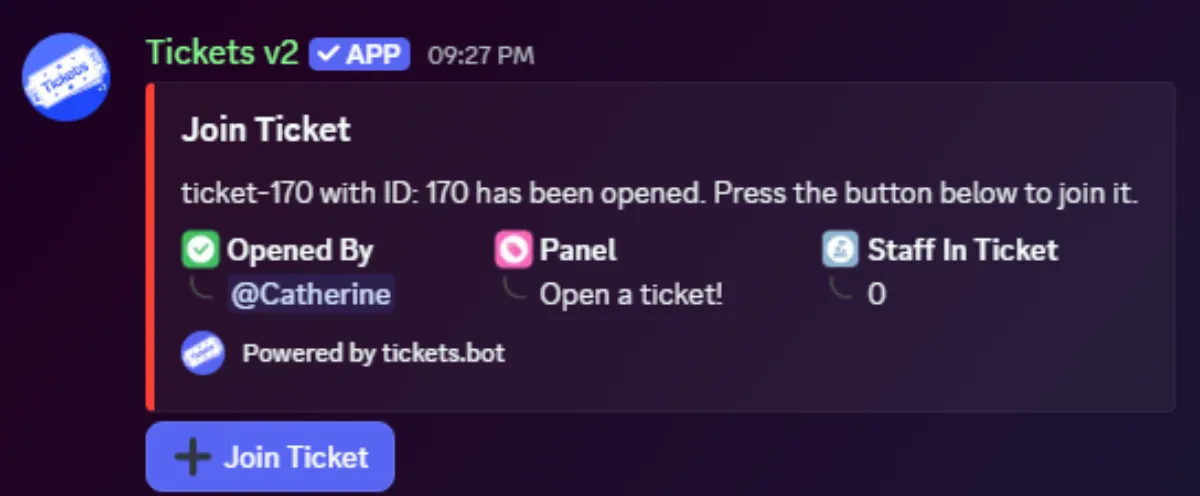
When thread mode is enabled, you must also set a Thread Notification Channel. This is the text channel where the bot posts a notification embed each time a ticket thread is opened. Staff members click a button on that embed to join the thread.
Mode Comparison
| Channel mode | Thread mode |
|---|---|
| Tickets are sorted by category. | Threads are attached to the panel channel. |
Can move between categories with /switchpanel. | /switchpanel is not supported. |
| Tickets cannot be reopened once closed. | Tickets can be reopened. |
| Transcripts are only viewable on the web dashboard. | Transcripts are viewable on the web dashboard and within Discord. |
| Limited to 500 channels total, and only 50 channels in a single category. This is a Discord limitation, not a bot limitation. | 1,000 open threads, unlimited closed threads. |
| All staff on the support team are added to the ticket. | Staff members must press a button to join the ticket. See the FAQ for a workaround. |
| Tickets can be claimed. | Claiming is not supported. Staff members join individually, which replicates similar behaviour. |
/notes creates a private thread for staff to talk in. | Discord does not support threads inside threads, so /notes cannot be used. |
| No concept of on-call staff. | Staff can be marked as on-call to be automatically pinged and added to tickets. |
| No spaces in channel names. | Spaces in channel names are permitted (e.g. Ticket 1234). |
On-Call
Thread mode introduces the /on-call command. When a staff member runs this command, they are assigned a role marking them as on-call until they run the command again. When a new ticket is opened, on-call roles are pinged in the ticket, instantly adding all currently on-call staff members.
Applies to New Tickets Only
When a staff member becomes on-call, they will not be added to any existing tickets. They must join existing tickets via the notification channel as normal.
FAQ
Which mode should I use?
If you run a server with a small team, channel mode is usually simpler. If you run a server with a heavy focus on 1-on-1 support, or need features like reopening tickets, thread mode is a better fit.
Can the support team be added to threads automatically?
Yes. Add the staff members or roles to both the panel's Support Teams and the Mention On Open list. When mentioned on open, those staff members are pinged inside the thread, which adds them automatically.
Will channel mode be removed?
No. Both modes will continue to be supported. Thread mode is entirely optional.
My users cannot type in their support tickets
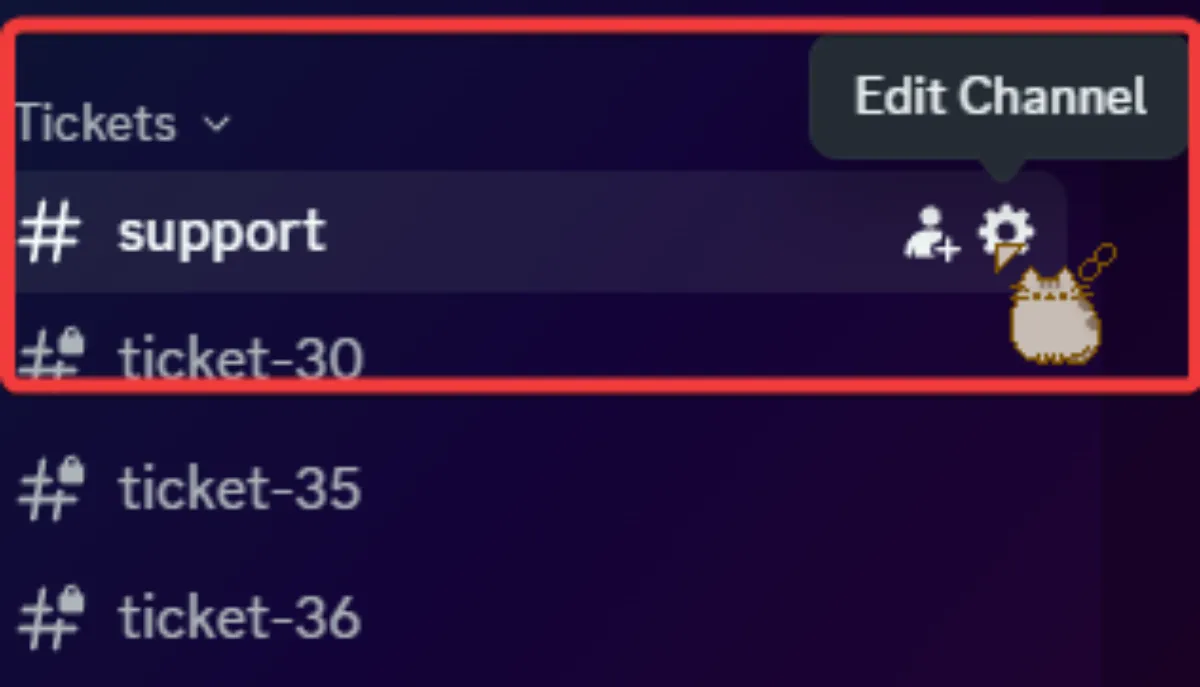
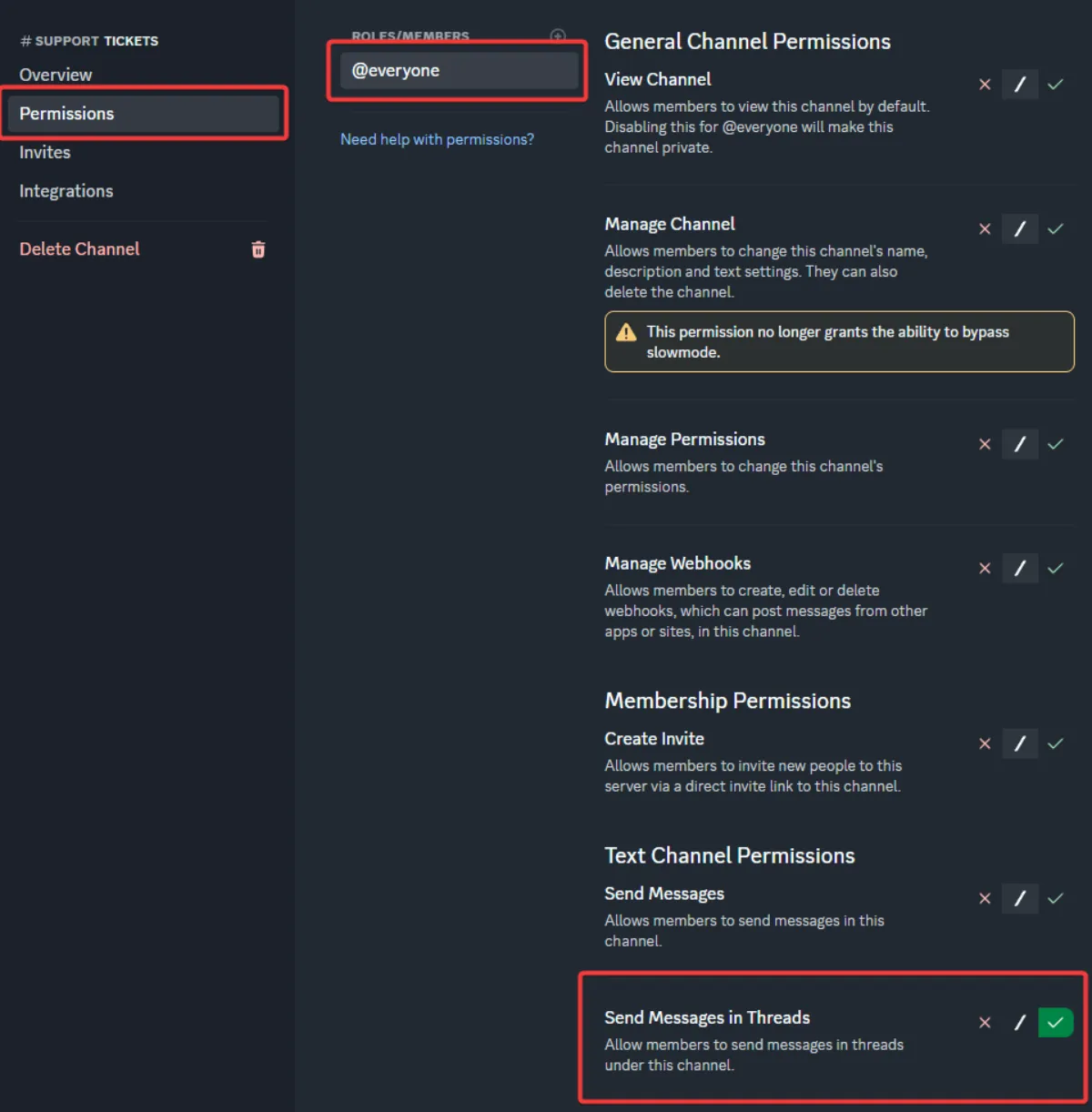
You must grant the Send Messages in Threads permission to your @everyone role on the panel channel.