
Bot Configuration: Setup Command
Tickets provides an option to automatically create a basic configuration for you. This isn't recommended since the settings are unlikely to be to your preference, and a ticket panel is not automatically created. For information on creating ticket panels, see our ticket panels guide.
To run it, first ensure that you are either the owner of the server, or the owner has designated you as an administrator of the bot using /addadmin @YourUsername. Next, simply execute /setup in a channel the bot can see.
It will update you as the process progresses:
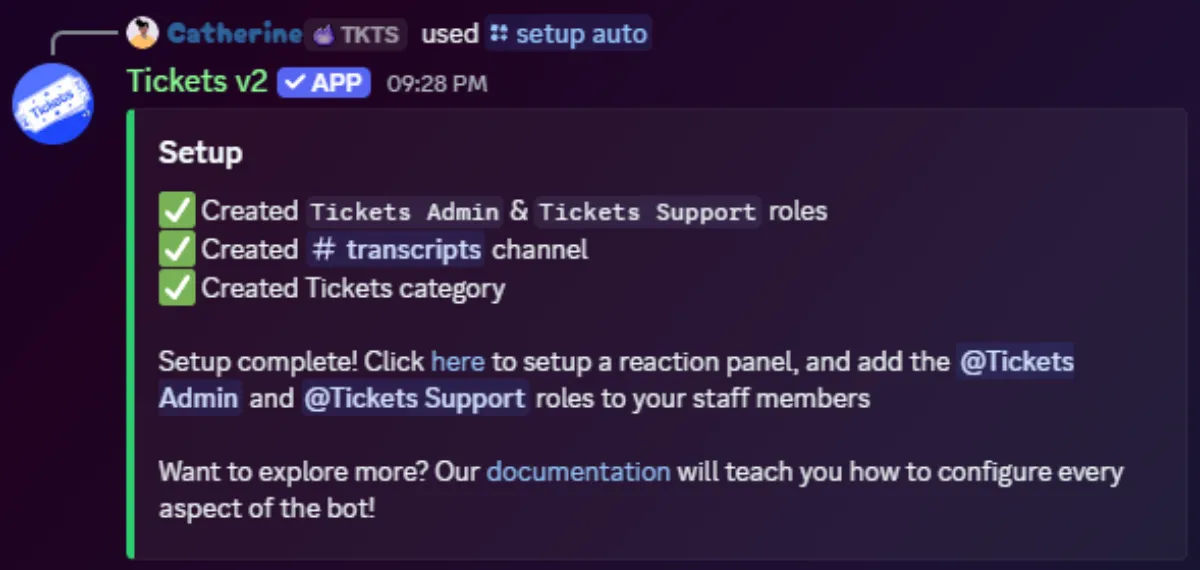
Simply assign your support staff the new Tickets Support role and your administrators the Tickets Admin role and your staff will be able to open and support users in tickets created via /open or the context menu (right click > apps > start ticket.)
What /setup Does
The command performs the following four actions in order:
| Step | Result |
|---|---|
Create the Tickets Support role | Registered as a support role, so members holding it can see and reply to tickets |
Create the Tickets Admin role | Registered as an admin role, granting full control over the bot |
Create a #transcripts channel | Visible only to the two roles above; everyone else is denied access |
Create a Tickets category | Where ticket channels are placed |
If any step fails (usually a missing permission), the bot marks that line with a ❌ and continues with the remaining steps.
Settings That Moved to Panels
/setup is the only setup command. The options it used to accept are now configured per panel, so each panel can behave differently. Open any panel from the Panels page.
For the full list of settings that moved, see Server Settings.
You'll probably want to create a ticket panel so it's easier for your server members to open a ticket, or tweak the settings on the web dashboard.