
Panels
Panels are the primary way users open tickets in your server. Each panel sends an embed with a button to a Discord channel; when a user clicks the button, a new ticket is created. You can create multiple panels with different settings, categories, and support teams to handle different types of requests.
The Panels Page
The Panels page shows all of your server's panels and multi-panels side by side. To reach it, open the dashboard, select your server, and click Panels in the sidebar.
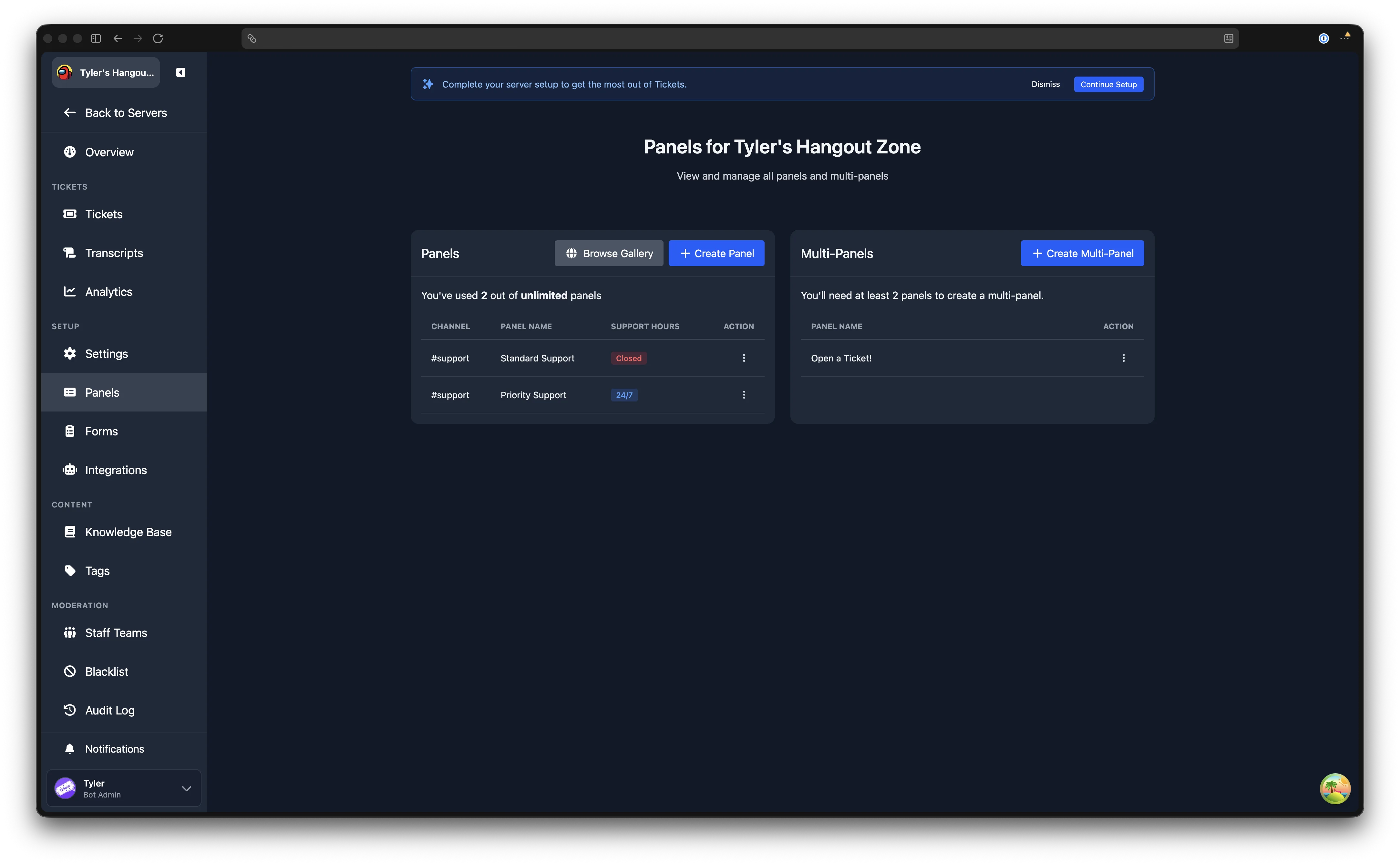
The left section lists your individual panels. Each row shows the channel, panel name, and support hours status (Open, Closed, or 24/7). The right section lists your multi-panels.
Free servers are limited to 3 panels. Premium servers can create unlimited panels. If you have reached the free limit, a prompt to upgrade is displayed at the top of the page.
Creating a Panel
Click Create Panel to open the panel editor with default values. Fill in the sections described below, then click Create Panel at the bottom of the page.
Editing a Panel
Click the action menu on any panel row and select Edit to open the panel editor with the panel's current settings. After making changes, click Save Changes.
Deleting a Panel
Click the action menu and select Remove. A confirmation prompt will appear. If you delete the panel's message directly in Discord instead, the panel continues to exist on the dashboard and can be resent.
Resending a Panel
If the panel message in Discord was deleted or you need to re-post it, click the action menu and select Resend. The bot sends a fresh copy of the panel embed to the configured channel.
Cloning a Panel
Click the action menu and select Clone to open the panel creation page pre-filled with all of the original panel's settings, including ticket properties, the panel message, welcome message, access control rules, and support hours. Adjust any details you wish to change (such as the title or channel), then save.
Free Plan Panel Limit
Free servers are limited to 3 panels. If cloning would exceed this limit, you will need to upgrade to premium. Learn more about premium.
Publishing to the Template Gallery
Click the action menu and select Publish to Gallery to share your panel design with the community. See the Template Gallery page for details on the submission process.
Gallery Submissions
If you have published any panels, tags, or forms to the gallery, a Gallery Submissions section appears below the panels and multi-panels lists. Each submission shows its name, category, status (Pending, Approved, or Rejected), import count, and actions to edit or withdraw it.
Panel Editor
The panel editor is used for both creating and editing panels. It is organised into the following collapsible sections, described in order below.
Panel Appearance
Controls how the panel embed looks in Discord and which channel it is posted to.
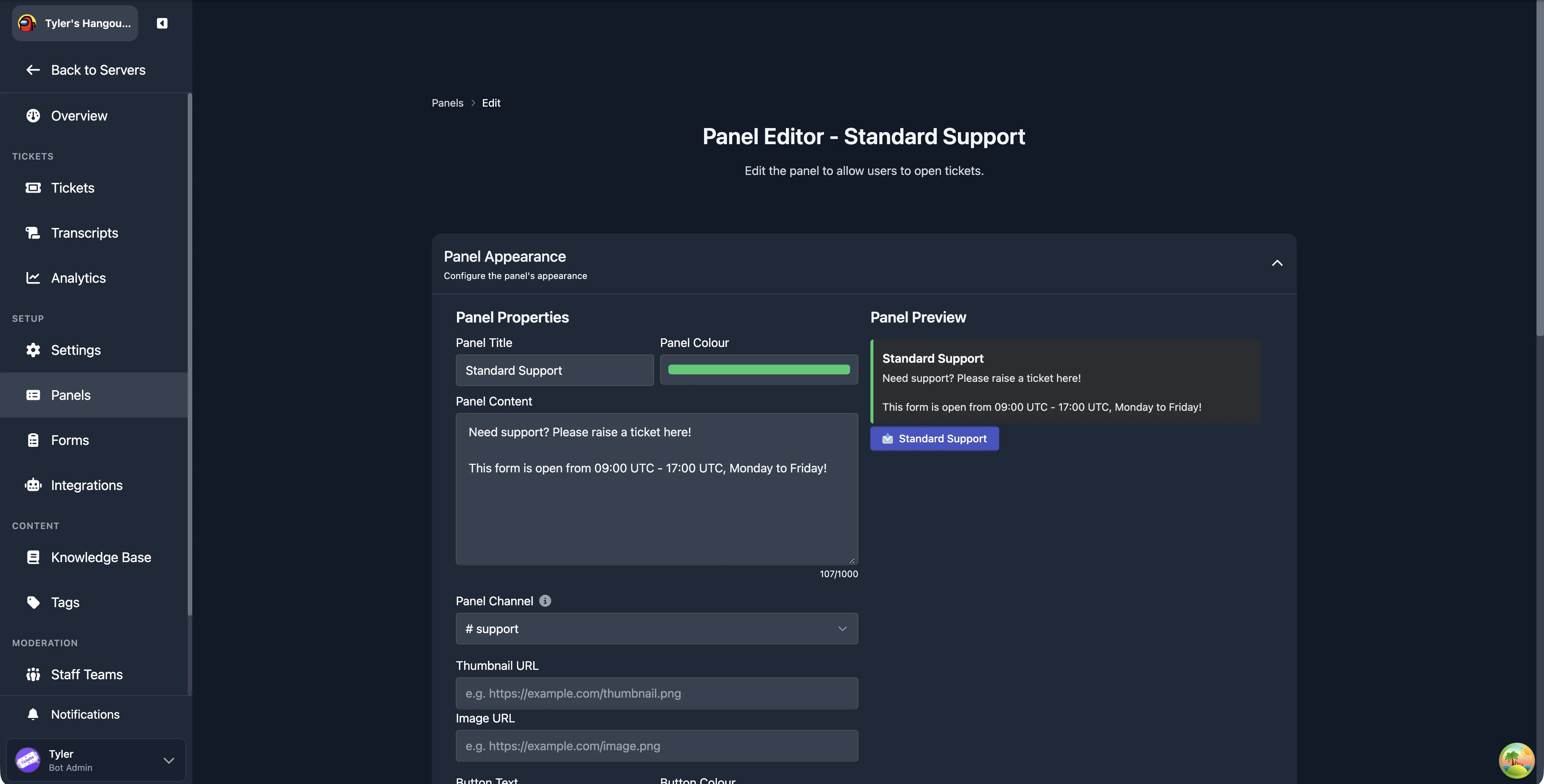
Panel Title
The bold text at the top of the embed. Default: "Open a ticket".
Panel Colour
The accent colour shown on the left edge of the embed. Click the colour picker to choose a custom colour.
Panel Content
The main body text of the embed. Use this to describe your support process, available languages, or any other information for your users. Maximum length: 1,000 characters.
Formatting
You can use Discord message formatting in the panel content, including bold, italic, links, and mentions.
Panel Channel
The Discord text channel where the bot sends the panel embed. This should be a channel accessible to all members. In thread mode, new tickets are created as threads under this channel. In channel mode, tickets open in the ticket category, but the panel message still lives in this channel.
Use a Separate Channel
Do not use the same channel as your transcript channel.
Thumbnail URL
A URL pointing to an image displayed as a small thumbnail to the right of the embed content.
Image URL
A URL pointing to an image displayed full-width below the embed content.
Image URLs
The URL should point directly to an image file. An easy way to get a suitable URL is to send the image as a message in a Discord channel, then right-click the image and choose Copy Link.
Button Text
The label displayed on the panel button. Default: "Open Ticket".
Button Colour
The colour of the panel button. Options are Blue, Grey, Green, and Red.
Button Emoji
The emoji displayed on the panel button. You can paste a standard Unicode emoji directly into the field. To use a custom emoji from your server, the picker shows a list of your server's custom emojis to choose from.
Routing
Controls where tickets go, which teams handle them, and what notifications are sent when a ticket is opened.
Support Teams
Select which staff teams handle tickets created from this panel. You can select the Default team, any custom teams you have created, or a combination. If no team is selected, all staff can see the ticket.
Ticket Category
The Discord channel category that new ticket channels are created under. Each panel can use a different category, letting you organise tickets by type. Learn more about channel categories.
Awaiting Response Category
When a ticket is awaiting a response from the user, it can be automatically moved to a separate category to help staff prioritise. Select the category to use, or leave it empty to disable this behaviour.
Learn more about the awaiting response category.
Premium Feature
This is a premium feature. Learn more about premium.
Transcript Channel
The text channel where the bot posts a summary message after a ticket is closed. The summary includes the ticket ID, opener, closer, timestamps, and a link to the online transcript (if transcripts are enabled). Leave empty to disable. Works together with the Enable Transcripts toggle below.
Mention On Open
A list of roles or users to mention when a ticket is opened from this panel. You can also select Ticket Opener to mention the user who opened the ticket, or @here to mention all online members in the ticket channel.
Muted Users Are Not Notified
Mentions will not notify users who have their notification settings set to mute.
Mentions Behaviour
Controls what happens to the mention message after it is sent:
| Option | Behaviour |
|---|---|
| Delete mentions | The mention message is deleted after sending |
| Hide Mentions | The mention message is hidden (suppressed) |
| Do Nothing | The mention message remains visible |
Form
Attach a form to this panel. When a user clicks the panel button, they are presented with the form to fill in before the ticket is created. Select "None" to open tickets without a form.
Enable Transcripts
Toggle whether transcripts of tickets opened from this panel are stored for later review by staff.
Welcome Message
The welcome message is the embed sent to the ticket channel as soon as the ticket is opened. The editor includes a live preview on the right side.
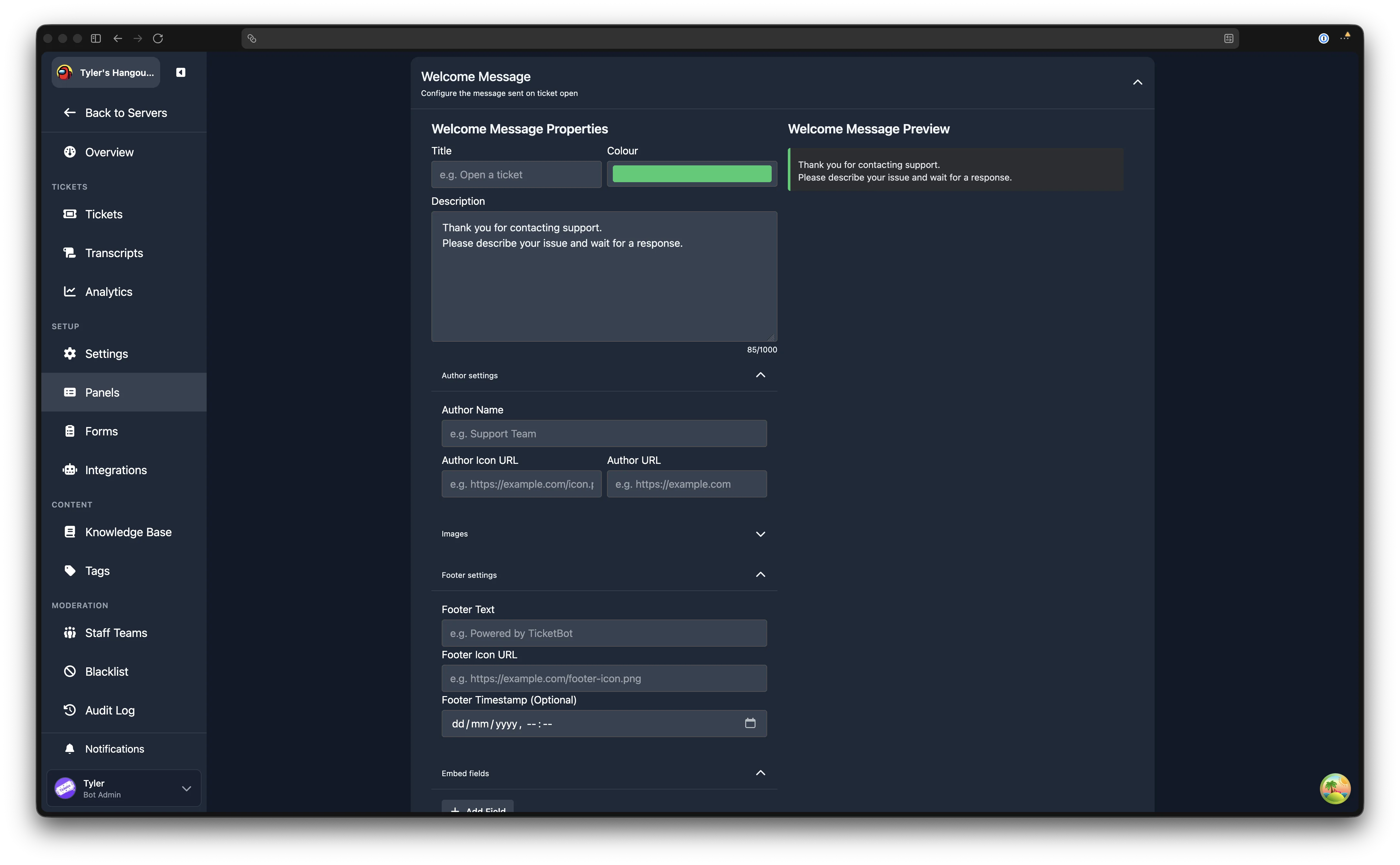
Previously, the welcome message was set globally on the Settings page. It is now configured per panel.
Title
The bold text at the top of the welcome message embed.
Title URL
Makes the title a clickable link.
Colour
The accent colour on the left edge of the welcome message embed.
Description
The main body text of the welcome message. Maximum length: 1,000 characters. Placeholders can be used here.
Formatting
You can use Discord message formatting in the description, including bold, italic, channel links, role mentions, and user mentions. To use mentions, enable Discord Developer Mode (User Settings, Advanced, Developer Mode), right-click any channel, user, or role and choose Copy ID, then use the format from Discord's formatting reference.
Author Settings
An expandable sub-section with fields for:
- Author Name - text displayed above the embed title.
- Author Icon URL - a small image displayed next to the author name.
- Author URL - a link that the author name points to when clicked.
Images
An expandable sub-section with fields for:
- Thumbnail URL - a small image shown to the right of the embed content.
- Image URL - a large image shown below the embed content.
Footer Settings
An expandable sub-section with fields for:
- Footer Text - text displayed at the bottom of the embed.
- Footer Icon URL - a small image displayed next to the footer text.
- Footer Timestamp (Optional) - a date and time displayed next to the footer.
Embed Fields
An expandable sub-section where you can add custom fields to the embed. Each field has a name, value, and an option to display it inline.
Ticket Behaviour
Controls how tickets are created, named, and limited.
Previously, several of these settings were on the global Settings page. They are now configured per panel.
Create Tickets as Threads
When enabled, tickets are created as private threads instead of separate channels. Click the info icon next to the toggle for a detailed comparison of thread mode and channel mode.
Thread Notification Channel
Only available when thread mode is enabled. Select the text channel where the bot posts a notification embed each time a ticket thread is opened. Staff can click a button on that embed to join the thread. This field is required when thread mode is active.
Naming Scheme
Choose how ticket channels (or threads) are named. Preset options:
ticket-%id%(default)ticket-%username%ticket-%id%-%username%ticket-%nickname%ticket-%id_padded%- Custom - enter your own pattern.
When Custom is selected, a text field appears for you to type a custom naming scheme. Spaces are automatically replaced with hyphens. Placeholders can be used.
Show in /open Command
When enabled, this panel appears as an option in the /open command, letting users open a ticket from the command picker instead of clicking a button. When disabled, the panel is only accessible via its button in the panel channel.
Enable Overflow Category
Discord limits each category to 50 channels. When enabled, tickets that would exceed this limit are created in the overflow category instead.
Overflow Category
Only visible when overflow is enabled. Select the Discord channel category to use when the primary ticket category is full.
Ticket Open Cooldown (seconds)
A per-user cooldown preventing users from opening tickets on this panel in rapid succession. Set to 0 to disable (default). Staff members are exempt from cooldowns. On the edit page, a Reset Cooldowns button clears all active cooldowns for the panel.
Max Open Tickets Per User
The maximum number of tickets a single user can have open at the same time on this panel. Only tickets opened from this panel count towards it. Set to 0 (default) for no limit on this panel. Maximum value: 10. Staff members are exempt from this limit.
How the two limits combine
This limit and the server-wide Simultaneous Ticket Limit are independent and both apply, so a user is blocked as soon as either is reached. A limit of 0 switches that check off; a user is only unlimited when both are 0.
With a server-wide limit of 6 and this panel set to 1, a user can have at most 6 tickets open across the server, and at most 1 of those from this panel.
Closing and Claiming
Controls how tickets are closed and how staff claim tickets. The section is divided into Closing and Claiming sub-headings.
Previously, several of these settings were on the global Settings page. They are now configured per panel.
Closing
Allow Users to Close Tickets
Toggle whether the user who opened the ticket can also close it. When disabled, only staff members can close tickets.
Ticket Close Confirmation
Toggle whether a second confirmation prompt is required before a ticket is closed.
Enable User Feedback
Toggle whether users are asked to provide a star rating after their ticket is closed.
Learn more about user feedback.
Hide Close Button
Toggle whether the Close button is hidden in tickets opened from this panel.
Hide Close with Reason Button
Toggle whether the Close with Reason button is hidden in tickets opened from this panel.
Exit Survey
Select a form to present to users when their ticket is closed, allowing them to provide structured feedback. Select "None" to disable. The form must already exist on the Forms page.
Learn more about exit surveys.
Premium Feature
This is a premium feature. Learn more about premium.
Claiming
Learn more about claiming tickets.
Hide Claim Button
Toggle whether the Claim button is shown in tickets opened from this panel.
Support Can View Claimed Tickets
Toggle whether other support staff can view a ticket that has been claimed by a different staff member.
Support Can Type in Claimed Tickets
Toggle whether other support staff can send messages in a claimed ticket. This option is only available when Support Can View Claimed Tickets is enabled.
Permissions
Controls which Discord permissions are granted to the ticket opener inside their ticket channel. Each permission has a toggle:
- Enabled (green) - the user receives this permission in the ticket channel.
- Disabled (grey) - the user does not receive this permission.
Previously, these settings were on the global Settings page. They are now configured per panel.
The available permissions are:
| Permission | Description |
|---|---|
| Add Reactions | Allow the user to add reactions to messages |
| Send TTS Messages | Allow the user to send text-to-speech messages |
| Embed Links | Allow URLs posted by the user to show embeds |
| Attach Files | Allow the user to upload files |
| Use External Emojis | Allow the user to use emojis from other servers |
| Use External Stickers | Allow the user to use stickers from other servers |
| Send Voice Messages | Allow the user to send voice messages |
Access Control
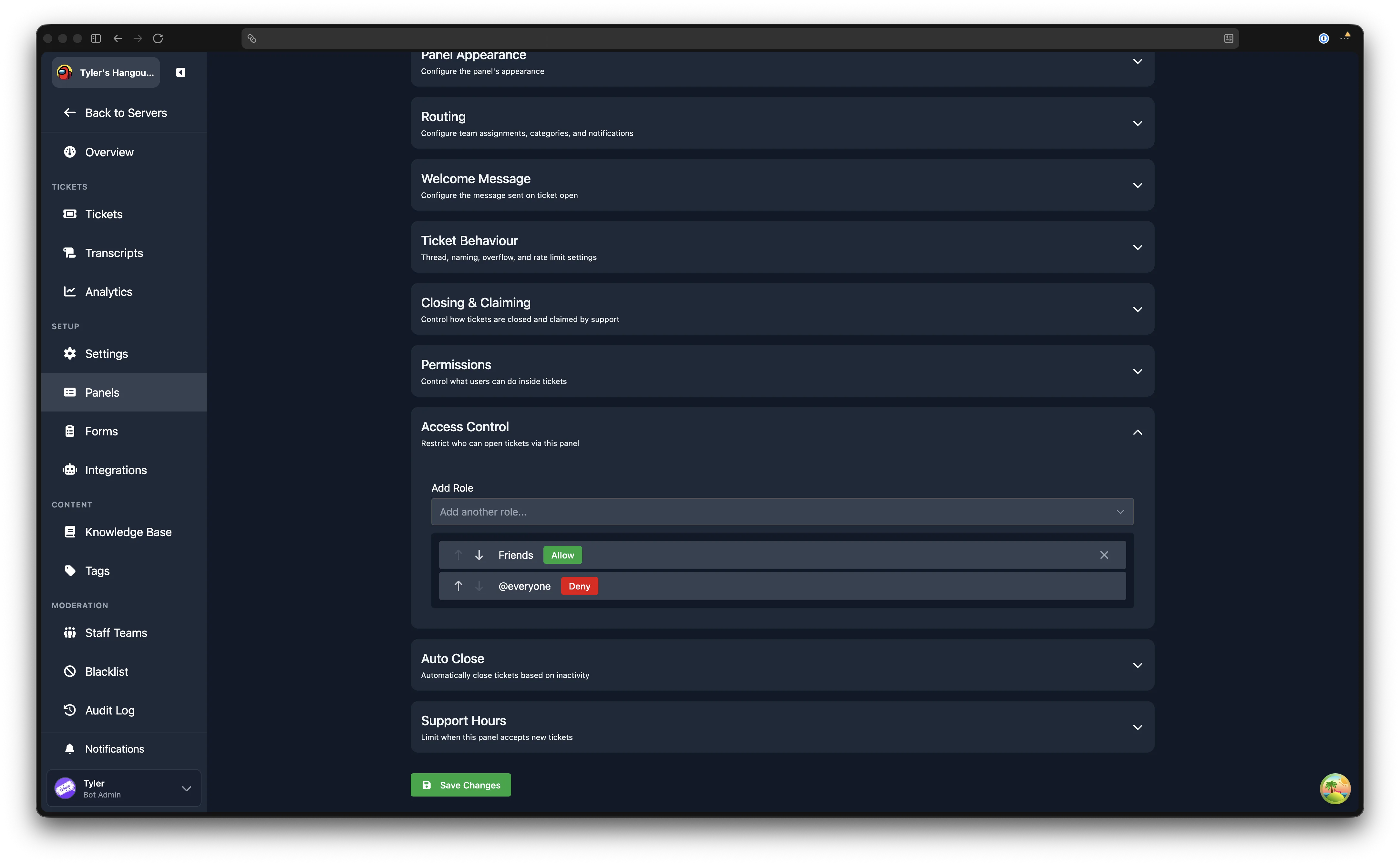
Restrict which roles can open tickets from this panel. The access control list is evaluated from top to bottom, stopping at the first matching rule.
Each rule specifies a role and an action: Allow or Deny. By default, the server's @everyone role is set to Allow, meaning all members can open tickets. Add Deny rules above it to block specific roles, or change the default to Deny and add Allow rules for specific roles.
Auto Close
Automatically close tickets based on inactivity. All options in this section require the Enable Auto Close toggle to be active.
Premium Feature
This is a premium feature. Learn more about premium.
Enable Auto Close
Master toggle for auto-close behaviour on this panel.
Close on User Leave
When enabled, tickets are automatically closed if the user who opened the ticket leaves the server.
Since Open with No Response
Set a duration. If the ticket opener does not send a message within this time after the ticket is opened, the ticket is closed automatically.
Since Last Message
Set a duration. If no messages are sent in the ticket for this length of time, the ticket is closed automatically.
Support Hours
Restrict when this panel accepts new tickets. Support hours are configured per day of the week with a start and end time in a timezone of your choice. Outside of the configured hours, the panel button is disabled and users cannot open tickets.
Learn more about support hours.
Free Plan Support Hours Limit
Free servers can configure support hours on 1 panel. Premium servers have no limit. Learn more about premium.