Bot Configuration: Web Dashboard
The web dashboard is where you configure Tickets for your Discord server. This page walks you through logging in and selecting your server, then points you to the setup wizard and the full dashboard guide.
Logging In
Head to dashboard.tickets.bot. You will be asked to log in with Discord. Click Authorise on Discord's OAuth2 page and you will be returned to the dashboard.
Selecting Your Server
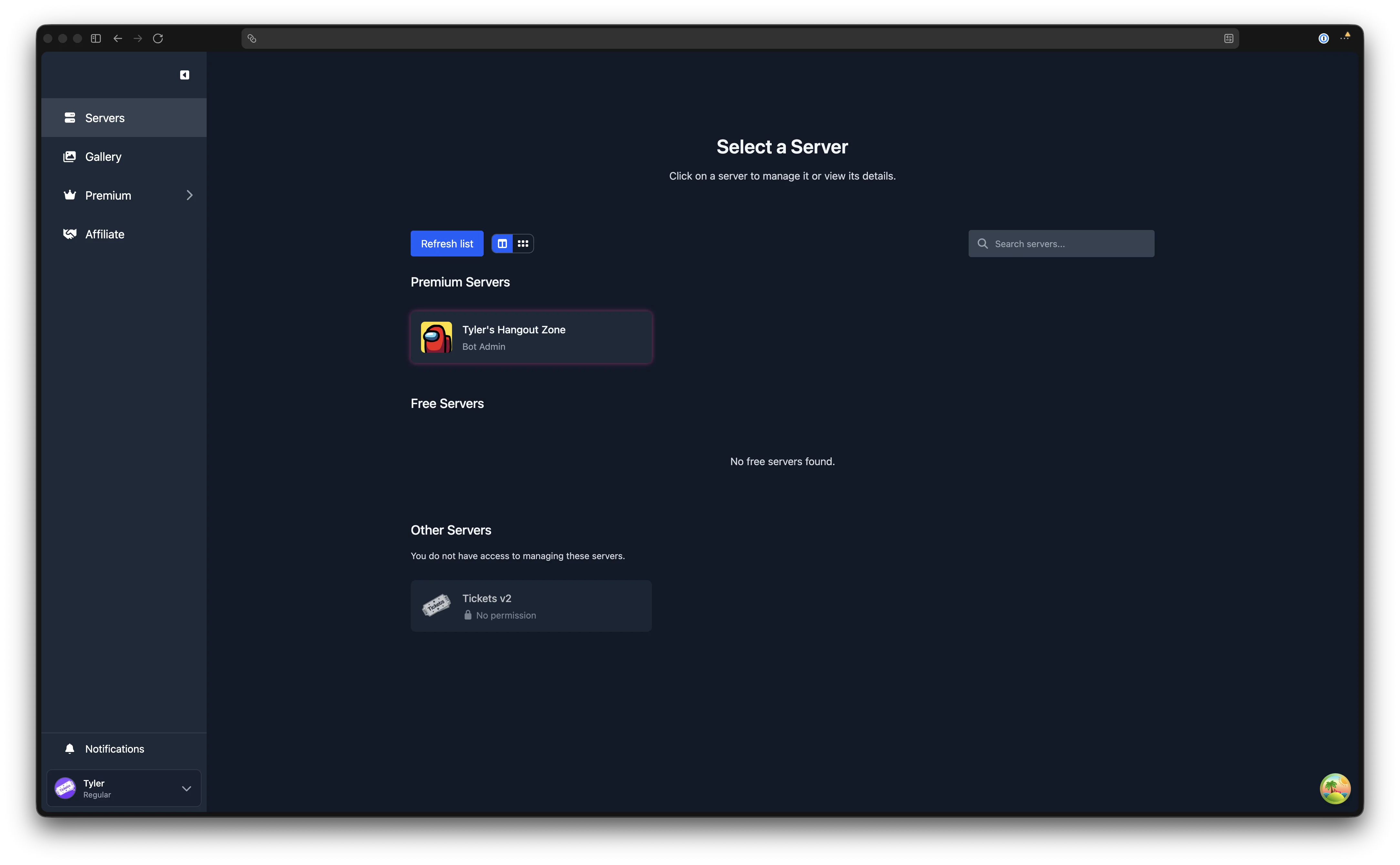
After logging in, you will see a list of servers. Servers where you have bot admin access (via /addadmin or server ownership) and where the bot has been invited appear under Premium Servers or Free Servers. Click a server to open its management dashboard.
If your server does not appear, check the following:
- You are either the server owner or have been added as a Tickets bot admin using
/addadmin @YourUsername - The Tickets bot has been invited to the server (see the invite guide)
- Try clicking Refresh list at the top of the server list, or log out and back in
First-Time Setup
If this is the first time you are configuring Tickets for a server, a setup banner will appear inviting you to the Setup Wizard. The wizard guides you through creating teams, forms, and your first ticket panel in a few minutes.
See Setup Wizard for a full walkthrough.
Exploring the Dashboard
For a complete tour of the dashboard layout, sidebar navigation, keyboard shortcuts, and command palette, see the Dashboard Introduction.