
Bot Configuration
Let's start getting the bot ready for use in your server!
Tickets was a very early adopter of slash commands, meaning that you can simply hit / in your Discord client to have commands auto-completed with the correct arguments:
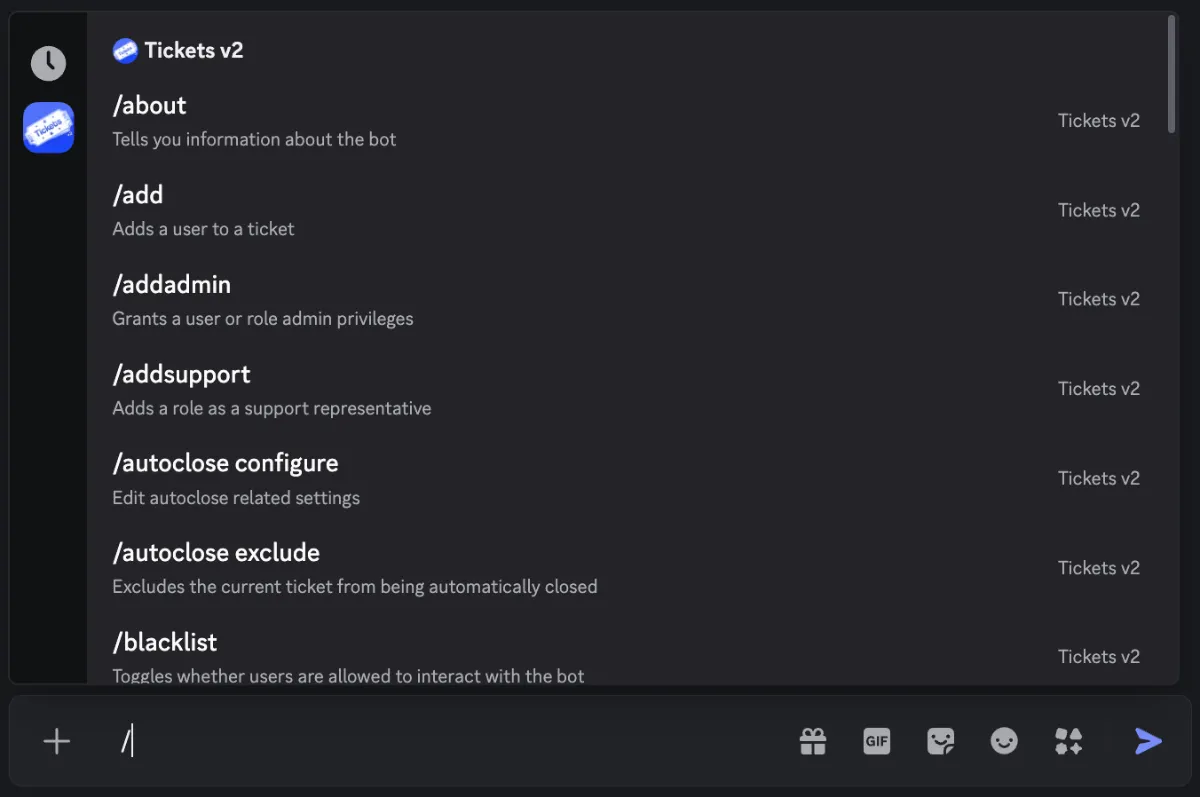
If you're not the owner of the server, now would be a good time to get the owner to designate you as an admin of Tickets. You can do this by asking the owner to run the command /addadmin @YourUsername in a channel the bot can see. If successful, Tickets will show you a ✅.
There are two ways in which you can configure the bot:
- Via the web dashboard [Recommended]
- Via the
/setupcommand in Discord
Use the Dashboard
We recommend using the web dashboard to configure the bot, as it's easier and more settings are available - including ticket panels.
/setup automatically creates the roles, channels, and category you need (excluding ticket panels) without any interaction required from you. This is fine as a starting point, but every other setting - transcripts, thread mode, welcome messages, and so on - is configured per panel on the web dashboard. Ticket limits are set in two independent places that both apply: server-wide on the Settings page, and per panel in the panel editor.
We have guides on both of the available methods:
- Web dashboard [Recommended]
- Setup command